
Class Schedule & Course Registration
Class Schedule & Course Registration
Welcome to the course registration hub. This page guides you through how to prepare, register, and manage your courses at VinUni.
Class Schedule
You can view the current and upcoming class schedule via the link below. It is updated each semester with the latest teaching timetable and room assignments.
🔗 View Class Schedule (updated every term)
How to Register for Courses
Key Steps to Follow
We recommend the following steps to ensure a smooth registration experience:
1. Review Your Study Plan
Check your program’s suggested course roadmap (issued by your College).
2. Consult Curriculum Framework
Understand your degree structure, course requirements, and prerequisites.
🔗 Curriculum Framework Link
3. Plan Your Tentative Schedule
Use the planning period prior to registration opening to draft your preferred course list.
4. Register on SIS
Log in to the Student Information System (SIS) and register for courses.
5. Follow Add/Drop Timeline
During the first few days of the semester, you can make changes directly in SIS.
6. Submit Special Requests
For retakes, audits, or withdrawals, contact the Registrar’s Office via email.
📄 Download SIS Registration Guide (PDF)
Course Registration Flow
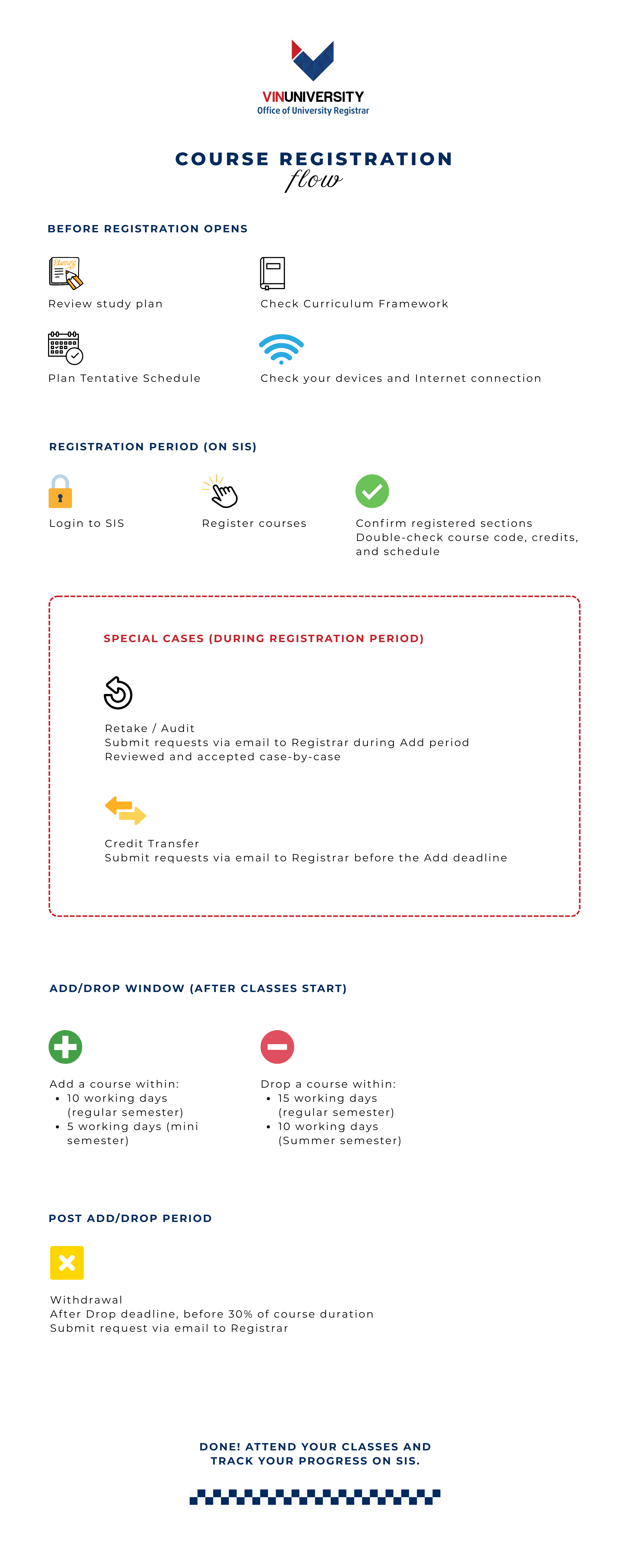
How to Use SIS for Course Registration
Follow these key steps to register successfully on SIS (Student Information System):
1. Log in to SIS
🔗 Go to SIS
Use your VinUni email and password.
2. Go to Registration portal
Go to “Academics” → “Course Registration” → see the correct term and click “Register” if the status is “Open”.
3. Search for Courses
Use course code or name to search. Filter by College, semester part (Full / A / B), or time slot.
4. Add Courses to Cart and Register
Click “Add,” then “Register” to finalize. Be careful to check the status of the course is “Registered” (not “Selected”; if it is “Selected”, it means that the course has not been registered).
5. Confirm Registration
Check your registered courses under “Your Class Schedule.”
📎 Download SIS Registration Guide (PDF)
How to Use SIS for Course Registration
Having trouble registering on SIS? You’re not alone. Common issues include system errors, course visibility problems, or unmet prerequisites.
Here are some examples covered in the guide:
- What to do if a course doesn’t appear
- Prerequisite issues despite eligibility
- How waitlists and course conflicts work
- What to do if the system says a course is full
- Maximum credit overload requests
- System access or technical errors
📎 Download Registration Troubleshooting Guide (PDF)
Additional Notes
1. Course Capacity & Waitlist
- Some courses have limited seats; once full, students will not be able to register unless a spot opens.
- No waitlist function is currently available in SIS. Students are advised to check SIS regularly for any open slots.
2. Prerequisite Enforcement
- SIS automatically blocks registration if prerequisites are not met.
- If you believe you are eligible but cannot register, contact Registrar’s Office.
3. Cohort-specific Restrictions
- Certain courses are restricted to specific cohorts.
- Check the course notes or announcements from your College.
4. Time Conflicts
- SIS will not allow you to register for overlapping courses.
- If needed, consult with Academic Advisor for alternative options.
💬 Need Help?
- Email: [email protected]
- Phone: +84 – 2471 089 779 (ext: 9004)
- Office: Room I114, 1st Floor, Building I
- Hours: 8:30 AM – 5:30 PM on working days
We wish you a smooth and successful registration journey!